
Everything a laser nest needs – and nothing it shouldn’t change
LaserNest moves parts, not your work. Numbers, cutouts, colours and cut order all come out the way you drew them – on less material.
Your drawings, understood
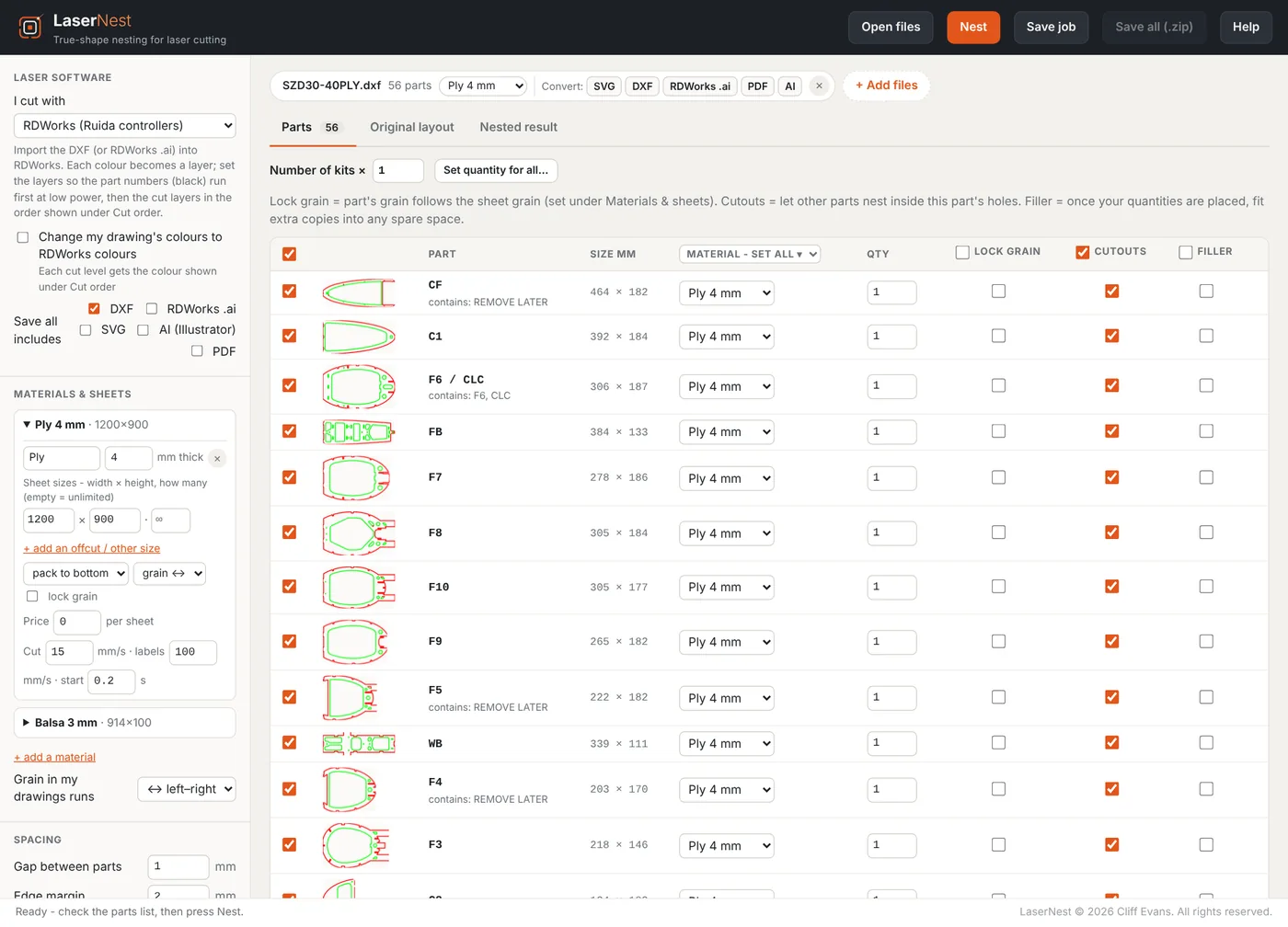
Drop in any sheet – LaserNest finds the parts
- Opens DXF, SVG and RDWorks .ai files – existing nested sheets, single parts, or a whole kit at once.
- Every closed outline becomes a part, with its cutouts and part number attached. Outlined numbers from RDWorks .ai work too.
- Finds the sheet outline and leaves it out of the parts.
- Removes hidden duplicate lines that would be cut twice – and shows you where they were.
- Closes tiny gaps in outlines and tells you about anything odd in a drawing.
True-shape nesting
Tighter sheets, automatically
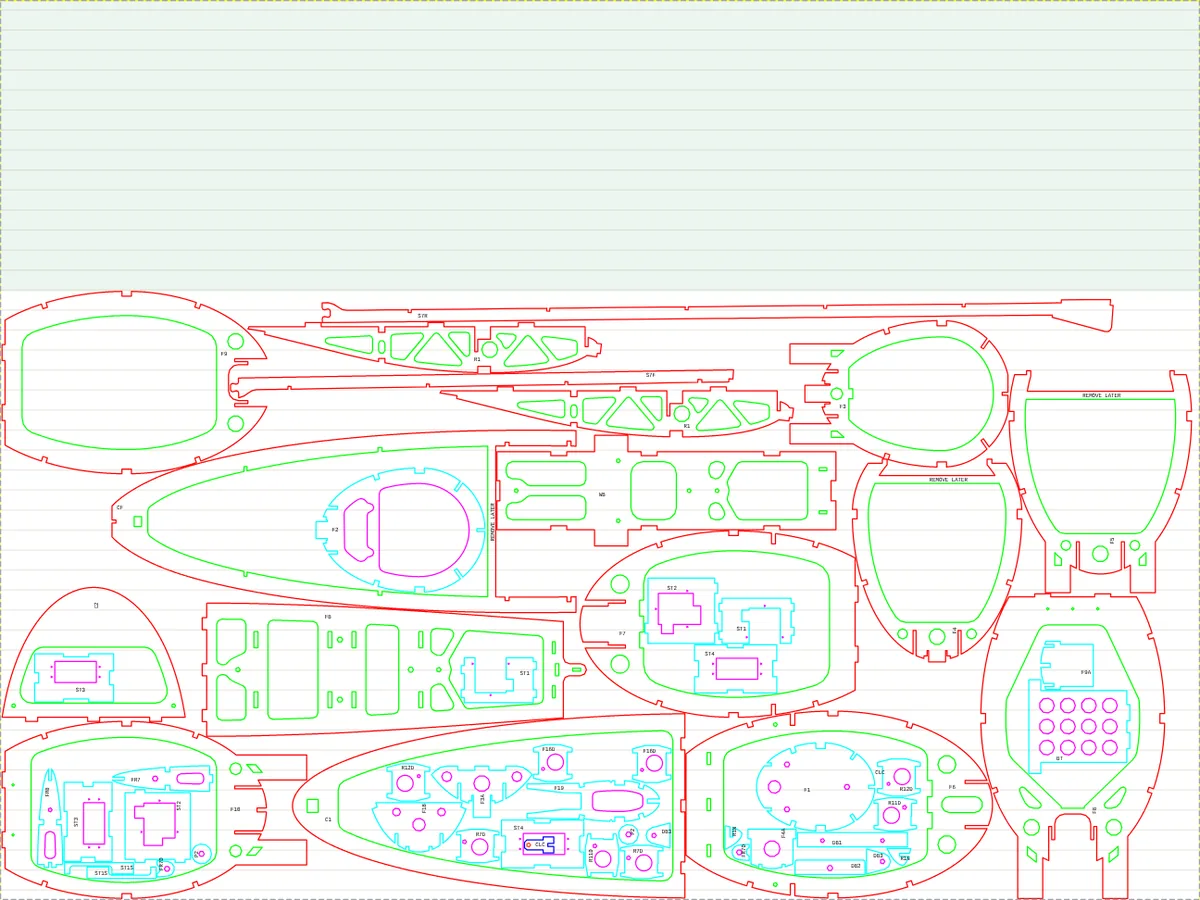
- Packs parts by their real shape, not their bounding boxes, and keeps improving the layout while the timer runs.
- Small parts go inside the cutouts of bigger parts – to any depth – and fill cutouts before open sheet.
- Keeps a gap of your choice between parts (1 mm is fine) and a margin round the sheet, then slides everything tight to the exact gap.
- Packs to the bottom or left edge, so the offcut is one clean strip.
- Lock grain per part: it keeps its grain along the sheet grain and only turns 180°.
- Filler parts: once your quantities are placed, add spare copies into the leftover space.
Cut order and cutting, done properly
Numbers first, inside out
Every saved sheet cuts the part numbers first at low power, then from the innermost parts out to the outer outlines, so nothing drops before it is cut. Nested parts change colour automatically.
Common-line cutting
Pack straight-edged parts edge to edge and cut each shared edge once – far less cutting on strips, spars and rectangles.
Kerf compensation
Moves each cut line half the beam width away from the part, so parts and slots come out at drawing size.
Bridges (tabs)
Small uncut gaps that hold parts in the sheet until you snap them out. Set the width, spacing and minimum per part.
Shorter head travel
Within each colour, the nearest shape is cut next – less time with the head moving and not cutting.
Time and cost
See the cut length, number of starts, an estimated cutting time and the material cost for every sheet and the whole job.
Your workshop
Your laser, your materials, your offcuts
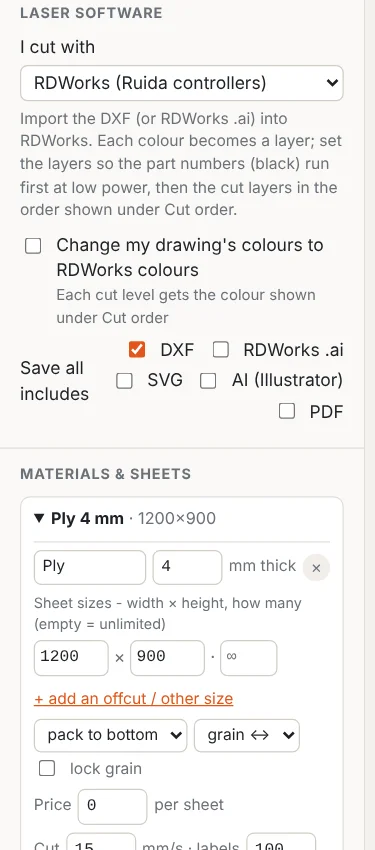
- Choose your laser software – RDWorks, LightBurn, xTool Creative Space, Glowforge, Epilog/Trotec or generic DXF – and LaserNest uses its colours and file types.
- Change a drawing’s colours from one program’s scheme to another’s, level by level.
- Save as DXF, SVG, PDF, Illustrator .ai or RDWorks .ai, one sheet at a time or all in a zip with a full report.
- Set up your materials – ply, balsa, MDF, acrylic – each with thickness, sheet sizes, grain, price and cutting speeds.
- List offcuts and part sheets you have in stock and they are used first.
- Convert any file to SVG, PDF or DXF without nesting – handy for opening RDWorks files in Illustrator or Affinity.
Edit the layout by hand
Drag, nudge with the arrow keys or rotate any part. Parts nested inside it move with it, and LaserNest won’t let anything overlap. Undo any time.
Save the job, carry on later
A .lnest job file keeps your drawings, settings and the finished nest together, so you can come back and cut the same sheets again.
Nothing to install
LaserNest runs in your web browser on Windows, Mac, Linux or a Chromebook. Updates arrive by themselves.
Your drawings stay with you
All the nesting happens on your own computer. Your files are never uploaded.